

Courses
Members browse your LearnDash courses, open one to see its lessons, read and complete lessons, and take its quizzes — all as native screens, graded and recorded by LearnDash exactly as your website records them.
Before you start
Section titled “Before you start”| Plugin | LearnDash LMS 5.1.7 or newer |
| Endpoint group | Courses |
| Plan | Every plan |
Placing the feature switches the Courses group on for you when your site is connected. Otherwise turn it on under Memberside → REST API.
Add it to your app
Section titled “Add it to your app”Drag Courses onto a navigation bar or into the side drawer. It pairs with My Courses, which lists only what a member is taking.
Three screens come with it, added to the background for you: Course, Lesson and Quiz. Open any of them from the preview to give it a title, a background and its own appearance.
Settings
Section titled “Settings”| Setting | What it does | Default |
|---|---|---|
| Title, Description | Shown at the top | Empty |
| Starting category | The course category the catalogue opens on, chosen from your site’s categories | All categories |
| Courses per page | How many load at a time | 20 |
| Restrictions | Who can open the screen | Everyone |
The Appearance tab of each Courses screen sets its layout (List, Grid or Hero + grid), the cards (background, border, corners, padding and margin), the gap between cards, the screen padding, three text styles (titles, details and body text), an accent colour for progress and buttons, and which elements show: search, category chips, Continue learning, price, lesson count, progress, author, materials, the lesson timer, Previous / Next, the quiz question navigator and its countdown bar. Leave anything empty to follow your global Typography and colours.
Pin one course, lesson or quiz
Section titled “Pin one course, lesson or quiz”To give one course its own button, place Course, Lesson or Quiz instead of the whole catalogue. In the feature’s settings:
- Course: search your site’s courses and choose one.
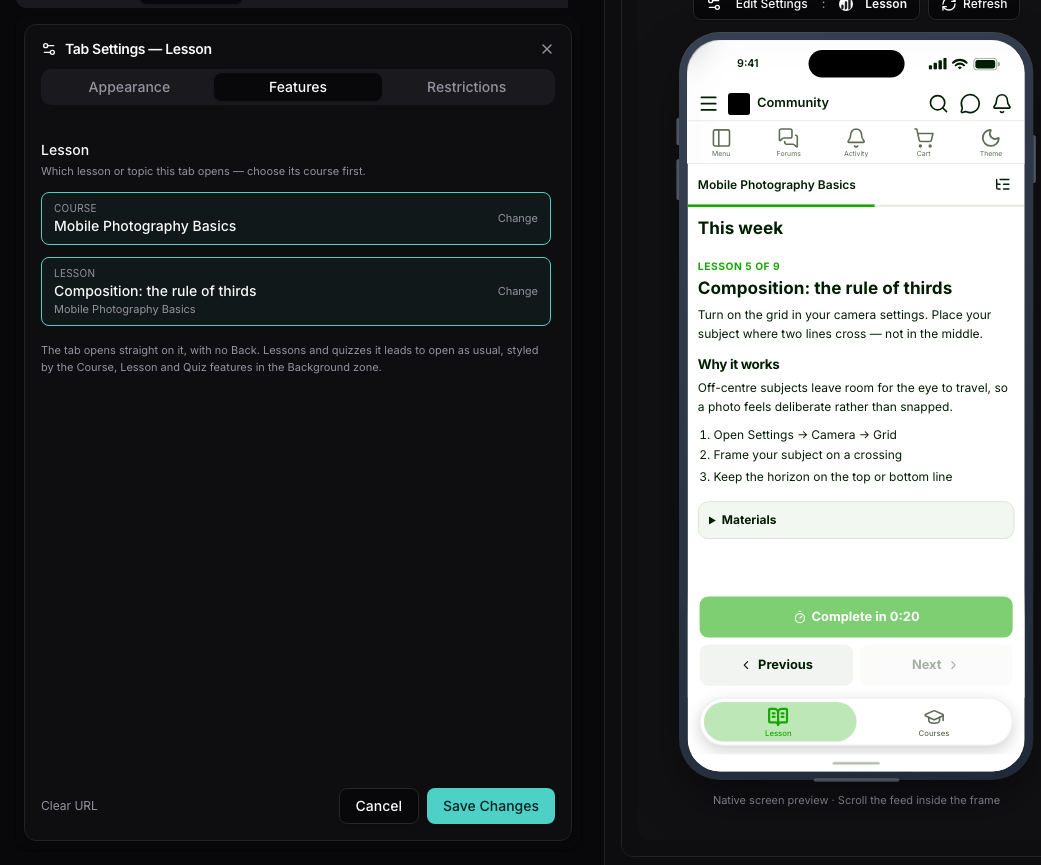
- Lesson and Quiz: choose the course first, then a lesson, topic or quiz from its outline. A lesson is always opened inside a course, because LearnDash can share one lesson between several courses, and the course decides its order, drip date and who can open it.
The tab opens straight on what you chose, with no Back button, using the feature’s own title, background and appearance. What it leads to, such as a lesson of a pinned course or the quiz at the end of a pinned lesson, opens as usual and follows the Course, Lesson and Quiz screens in the background. Before you choose, the tab says where to choose. With no site connected, the list shows sample courses so you can design the screen first.
What your members see
Section titled “What your members see”The catalogue. A search field, a filter drawer (my courses, not enrolled, completed, free or paid, category), category chips and a Continue learning rail of the courses a member has started. Each card shows the cover, the price or Free, Enrolled or Completed, the lesson count and their progress.
A course. The cover with a progress ring, the description, the author, course materials, and the outline: lessons, their topics and quizzes, then the course’s own quizzes. Each row is ticked when done, or says why it is not open yet: sign in first, enroll first, the date a dripped lesson opens, or the step to finish before it. A button at the bottom says what to do next: Start course, Continue at the next unfinished step, Enroll for free, or View certificate once the course is complete.
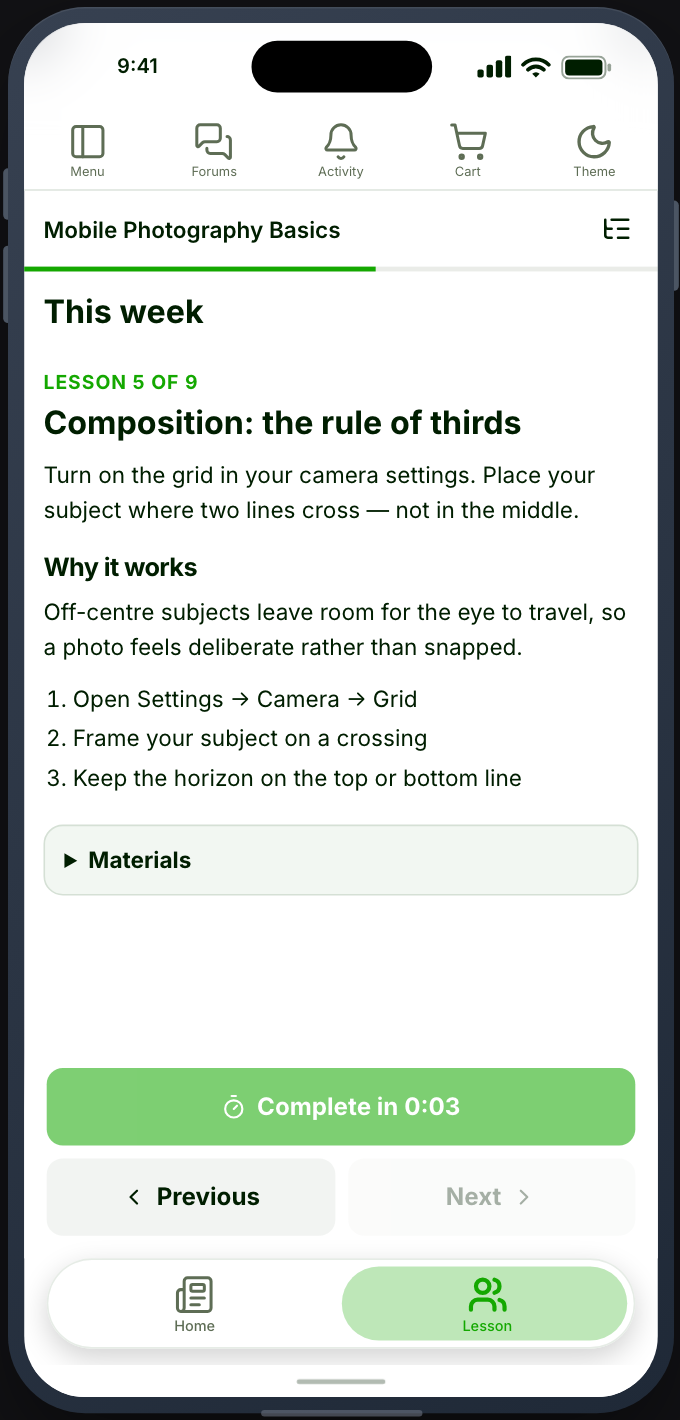
A lesson or topic. The content, the video, materials, and Mark complete. A lesson timer counts down on the button, and a lesson with a video waits until it has been watched. Previous and Next walk the course in order. The outline opens as a drawer from the top bar.
A quiz. An intro with the number of questions, the pass mark, any time limit and the attempts left. Questions come one at a time with a countdown bar and a question navigator drawer: single and multiple choice, free text, sorting, matching, fill in the blanks, a rating scale and essays. In a quiz set to check each answer, Check answer marks it at once. The results show the score, pass or fail and, unless the quiz hides them, each answer with the right one.
What the site enforces
Section titled “What the site enforces”Everything LearnDash enforces on your website holds in the app, because the site checks it, not the phone: lesson order, drip dates, course prerequisites, the lesson timer, the video, a quiz’s time limit and its retake limit. An essay waits for a teacher to grade it under LearnDash LMS → Submitted Essays, as on the website.
Paid and closed courses
Section titled “Paid and closed courses”Free courses enroll in the app. A course with a price, a subscription or a closed enrolment opens its own page on your website, signed in, so members pay or apply the way they do today. Where the app stores do not allow selling digital goods outside their own billing, your store policy hides the price and the button, as it does for your shop.
Certificates and notifications
Section titled “Certificates and notifications”View certificate opens LearnDash’s certificate in an in-app browser, signed in.
Members get a notification when:
- a course is opened to them by a purchase, an admin or a group leader (not when they enroll themselves) — it opens the course;
- they complete a course — it opens the course;
- a teacher approves an assignment they uploaded — it opens the lesson;
- a teacher grades their essay — it opens the quiz.
Teachers (the course author and the learner’s group leaders) get one when an essay is waiting for a grade. Grading happens on your website, so it opens the quiz’s ungraded essays there. Access given through a LearnDash group does not send a notification.
When it does not work
Section titled “When it does not work”| Symptom | Cause | Fix |
|---|---|---|
| The card is greyed out | LearnDash LMS is not active | Activate it |
| Could not load the courses | The Courses group is off | Enable it |
| Complete in 0:30 never enables | The lesson timer is still running on the site | Wait for it; the site counts from when the lesson was first opened |
| Mark complete stays disabled | The lesson’s topics or quizzes are not finished, or it needs an assignment | Finish them; assignments are uploaded on the website |
| A quiz says it opens on the website | It uses custom fields or file-upload essays | Expected — those stay on the website |
| You have used all your attempts | The quiz’s retake limit is reached | Raise Retake restrictions on the quiz |