

Complete Profile
Members finish their profile inside the app, a few fields at a time, instead of being sent to a browser. Drop it in the Background zone and it becomes a gate: a member whose profile is below the percentage their role requires sees the completion screen instead of your app.
Before you start
Section titled “Before you start”| Plugin | Ultimate Member - Profile Completeness |
| Endpoint group | Profile Completeness |
| Plan | Every plan |
Completion is configured per role, not per app. Go to Ultimate Member → User Roles, pick a role, open its Profile Completeness section, and set which fields count and what each is worth. Until a role has at least one field with a percentage, everyone in it counts as complete and this screen has nothing to show.
Add it to your app
Section titled “Add it to your app”Drag Complete Profile into the Background zone. This is the gate: it appears after sign-in whenever the member is behind, and disappears when they catch up.
Open its settings and set Fields per page and the Progress bar style.
Optional: drag a second Complete Profile onto a navigation bar or into the side drawer. That one is an ordinary screen a member can return to, which is what they need if you let them skip the gate.
The screen also appears as a tab on the member’s own profile, so they can pick up where they left off. Nobody sees it on anyone else’s profile — how complete a member is stays private to them.
Settings
Section titled “Settings”| Setting | What it does | Default |
|---|---|---|
| Title, Description | Shown at the top | Empty |
| Enforce completion | Hold the app closed until they reach the required percentage | On |
| Allow skipping | Adds “Skip for now” to the gate. They are asked again next launch | Off |
| Fields per page | How many fields to ask for at once, 1–20 | 3 |
| Progress bar | Bar, Ring, Steps, Number or None | Bar |
| Show percentage | The number beside the bar | On |
| Show field count | “7 of 12 fields” | On |
| Show what each field is worth | Prints “Worth 10%” above each field | Off |
| Show the step indicator | Dots showing how far through they are | On |
| Most steps to draw | Past this many, the dots become “Step 3 of 12”. 0 always draws every dot | 6 |
| Include completed fields | Walk through everything, with finished fields marked done | Off |
| When they finish | Close the screen, open their profile, or go to the first tab | Close the screen |
| Celebrate when they finish | None, Confetti, Fireworks, Balloons, Sparkles or Check burst | None |
| Show it for | How long the celebration plays before When they finish runs, 1–6 seconds | 2.5 seconds |
| Restrictions | Which roles see the tab | Everyone |
Enforce completion can only relax what your site already does. The gate holds the app closed when the role has Prevent browsing switched on in WordPress and this setting is on. With Prevent browsing off, the screen still shows progress and still saves answers, but nobody is blocked — your app never blocks harder than your website does.
On the Appearance tab you can set the progress bar’s fill, track and label colours, its height, corner radius and ring thickness, and the border, corners, padding and margin of the card the fields sit in. Leave any of them empty to follow the rest of the app.
What your members see
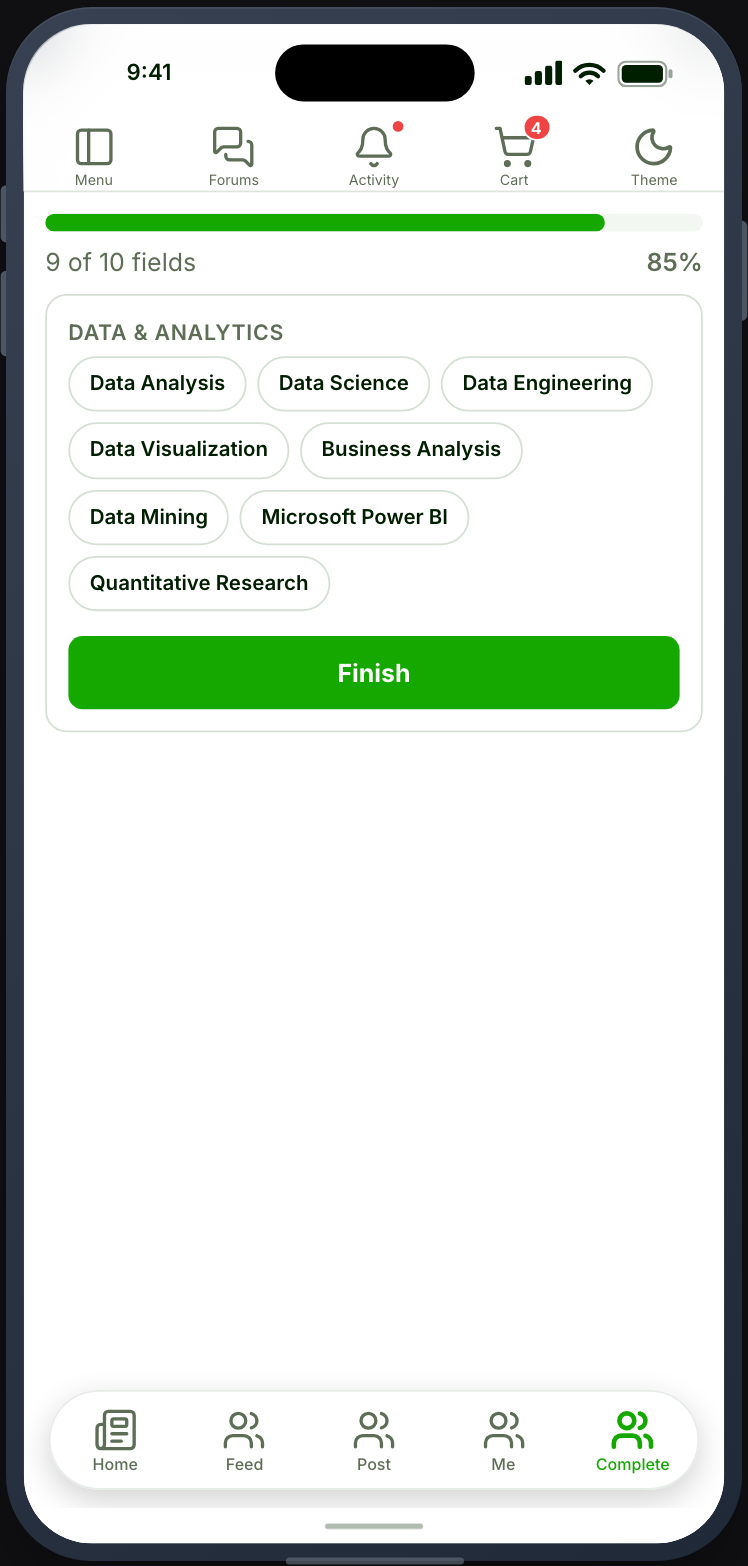
Section titled “What your members see”The bar shows how far along they are, then a page of fields at a time with Back and Save and continue. Each page saves as they move on, so a member who closes the app halfway keeps what they entered. When the last page is saved and the role is satisfied, the gate lifts.
With a celebration chosen, finishing plays it first, with “Profile complete!” in the middle of the screen, and then When they finish runs. A tap skips it. It plays only when a member completes their profile on this screen. A member who opens the screen already complete is not shown it. A phone set to reduce motion shows a still check mark instead.
When a member reaches the last page and their profile is still short, the screen stays put and shows Almost there: how complete the profile is, what is needed, and what is left. Fill them in goes back to the remaining fields, and Continue runs When they finish. On a gate that blocks the app, Continue only appears once there is nothing left that can be filled in from the app.
If a role’s field percentages add up to less than its required percentage, nobody in that role can ever finish. Ultimate Member lets you save a role like that. The settings panel warns you, naming the role and the gap, and members see the same explanation on the Almost there screen. This needs Memberside 2.80 or newer on your site.
The Login and Register screens can also open this screen straight after sign-in for members below a percentage you choose.
Fields work the way they do on your website
Section titled “Fields work the way they do on your website”A field on this screen is the same field your profile form renders, resolved the same way, so it behaves the same. A Country or Gender dropdown opens a searchable list, a user tags field offers your tags, and a User Locations field autocompletes the address and opens a map to drop a pin.
Long lists search your site as the member types rather than filtering a list that was sent in advance — which matters for tags and for any dropdown whose choices come from a callback, since those can run to thousands of entries and can change while somebody has the screen open.
Photos are uploaded in the app
Section titled “Photos are uploaded in the app”A weighted Profile Photo or Cover Photo step shows the current picture with Upload or Replace, and Reposition when there is an original to re-crop. Cropping happens in the app, and repositioning re-crops the original your site kept rather than uploading again, so nudging a photo does not cost a second upload or a second round of compression.
Two things follow from your WordPress settings rather than from the app: turning off profile or cover photo uploads in Ultimate Member turns the controls off here too, and the step goes back to asking members to use the website. If you use Media CDN, REST uploads are mirrored through the avatar mirroring setting — if that is off, photos uploaded from the app stay local.
Other image and file fields still have to be filled in on the website, and the screen says so rather than showing a box.
The percentage is a sum, not a fraction
Section titled “The percentage is a sum, not a fraction”Each field is worth whatever percentage the role gives it, and progress is those values added up. Three fields can be worth 30, 20 and 50. This catches people out because a member can complete most of their fields and still be far from the threshold if the ones they skipped carry the weight.
The required percentage is also per role. A role set to 80 releases its members at 80, with the remaining fields still listed.
When it does not work
Section titled “When it does not work”| Symptom | Cause | Fix |
|---|---|---|
| The gate never appears | Completion is off for that member’s role | Ultimate Member → User Roles → the role → Profile Completeness → switch it on |
| The gate never appears, and the role is on | No field has a percentage, so everyone counts as complete | Give at least one field a value |
| Members are blocked in the app but not on the website | Prevent browsing is on for the role | Turn it off in WordPress, or turn Enforce completion off in the app |
| The screen says completion is not set up | The member’s role has no completion settings | Expected, when you run this for some roles and not others |
| The screen is empty or shows an error | The Profile Completeness group is off | Memberside → REST API → switch it on. See Enable the endpoints you need |
| A field never counts as complete | Its metakey is not on the member’s profile form | Add the field to the form, or remove its percentage |
| The card is greyed out in the builder | Ultimate Member - Profile Completeness is inactive | Activate it. It also needs Ultimate Member 2.10.5 or newer |
| A member is stuck on a field they cannot answer | The field is required and has no value they can give | Lower the required percentage, or turn Allow skipping on |
| A dropdown opens with no choices in it | The field’s choices come from a callback that returns nothing for this member | Check the source in Ultimate Member → Forms → the field |
| A photo step says to use the website | Uploads are switched off for that photo | Ultimate Member → Settings → Users → turn profile or cover photo uploads back on |
| A photo uploads but does not appear on the CDN | Media CDN avatar mirroring is off | Memberside → Services → Media CDN → switch avatar mirroring on |
| No celebration when a member finishes | Celebrate when they finish is None, the member was already complete, or the save did not reach the role’s percentage | Choose a style. It plays only on the save that completes the profile |
| Members finish every step and are still incomplete | The role’s field percentages add up to less than its required percentage | Raise a field’s percentage or lower the requirement in Ultimate Member → User Roles. The settings panel names the role |