

Notices
The announcements you write in WordPress, shown to the members who use your app.
Before you start
Section titled “Before you start”| Plugin | Ultimate Member - Notices |
| Endpoint group | Notices |
| Plan | Every plan |
Add it to your app
Section titled “Add it to your app”Notices has two surfaces, and the zone you drop it into decides which one you get.
- Drag Notices into the Background zone for the ambient banner. It sits above the bottom bar on every screen, and the navigation stays usable underneath it.
- Drag Notices onto a navigation bar or into the side drawer for the list screen — every notice aimed at the member, including the ones they have already closed.
Place it in both zones to get both. They share one set of settings.
Settings
Section titled “Settings”| Setting | What it does | Default |
|---|---|---|
| Title, Description | Shown at the top of the list screen | Empty |
| Banner position | Which end of the screen the banner sits at | Bottom |
| Notices in the banner | How many to stack at once, 1–3 | 1 |
| Use each notice’s own colours | Draw a notice in the colours it was given in WordPress | On |
| Show the icon | Draw an icon on notices that have one | On |
| The button dismisses the notice | Tapping a notice’s button also marks it read | On |
| Keep notices they have read | List dismissed notices, dimmed | On |
| Notices per page | How many the list loads at a time, 1–50 | 20 |
| Restrictions | Which roles see the tab | Everyone |
Under Appearance you also get the notice card — border, corners, padding and margin — and the title and body typography. The card is used by the banner and by each row of the list, so a notice looks the same wherever it appears.
Your website decides the rest. Who a notice reaches, what it says and what colours it carries are set per notice under Ultimate Member → Notices, and the app follows them.
What your members see
Section titled “What your members see”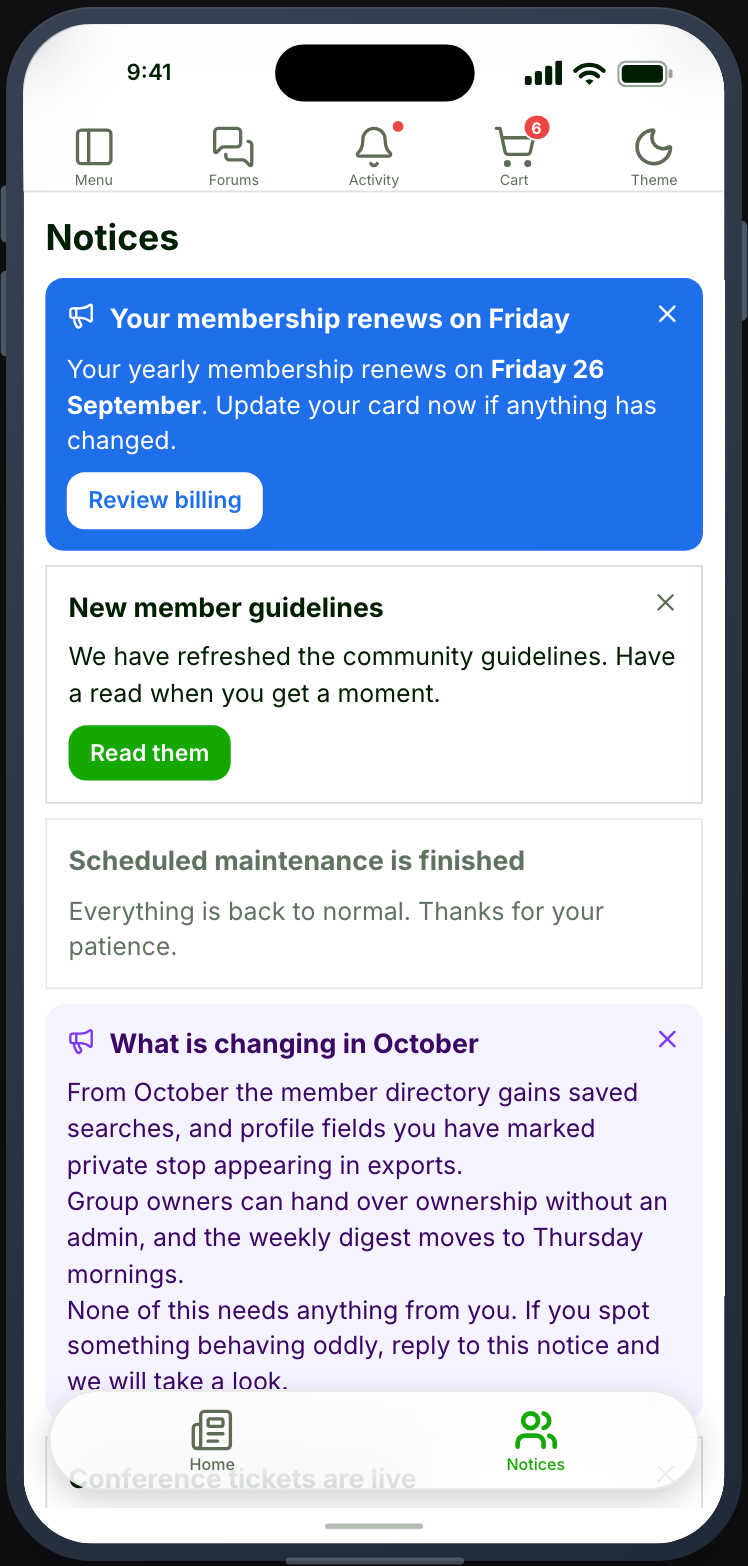
What your site’s settings change
Section titled “What your site’s settings change”Two of the extension’s own settings behave differently in an app, because they describe a website.
Page rules are ignored. The allowed-URL lists and the home, posts and pages switches describe addresses an app does not have, so every notice aimed at a member reaches them wherever they are.
Show in footer still counts. A notice with it turned off is one you placed on a single page with a shortcode, so the app lists it on the Notices screen but never raises it as a banner.
Dismissing works in both directions. A notice closed in the app is closed on your website too, because it is written to the same list your site’s own close button writes to. Only the Flush action on the notice itself clears that list.
Signed-out readers see the notices you target at logged-out visitors. Their dismissals are remembered on the device rather than on your site, since there is no account to record them against.
When it does not work
Section titled “When it does not work”| Symptom | Cause | Fix |
|---|---|---|
| The screen is empty or shows an error | The Notices group is off | Memberside → REST API — switch it on. See Enable the endpoints you need |
| The card is greyed out | UM - Notices is inactive | Activate it |
| The banner never appears | Every notice is dismissed, or none is set to show in the footer | Check the notice under Ultimate Member → Notices, and use Flush to clear who has read it |
| A notice looks plain in the app | It has a text colour but no background colour | Set both, or neither — a light text colour on the app’s own background would be unreadable |
| Both a banner and the completion gate are showing | Profile completion covers the app until it is finished | Expected. The gate comes first; the banner is there when they get past it |