

Register
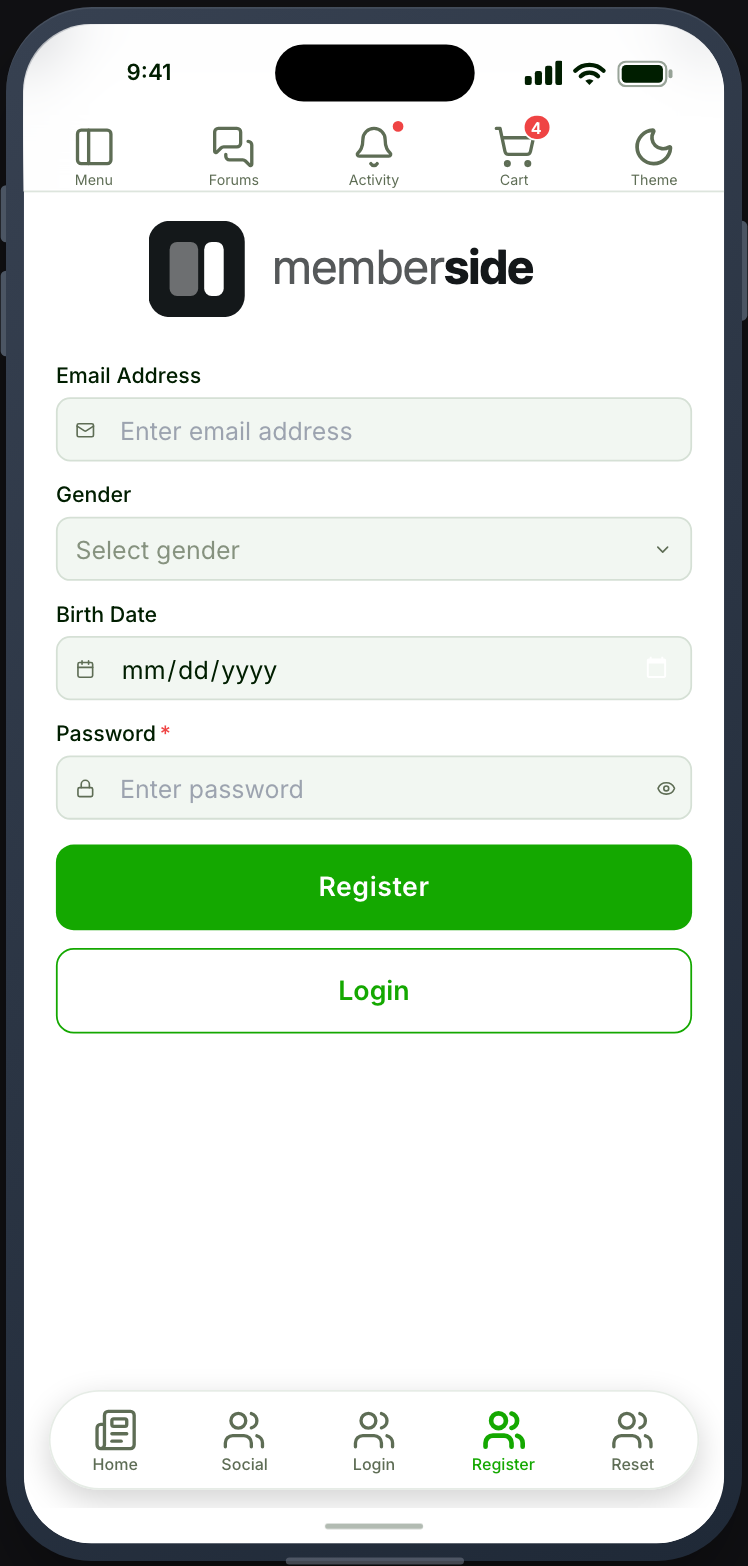
Registers new members using your Ultimate Member registration form, with the fields, roles and workflows your site already applies.
Before you start
Section titled “Before you start”| Plugin | Ultimate Member |
| Endpoint groups | Authentication, Forms |
| Plan | Every plan |
Your registration form must opt into the API — tick Show this form to REST API on it.
Add it to your app
Section titled “Add it to your app”- Drag Register onto a navigation bar or into the side drawer.
- Choose the registration form.
- Set after registration.
Settings
Section titled “Settings”| Setting | What it does | Default |
|---|---|---|
| Registration form | Which Ultimate Member form to render | Your default registration form |
| After registration | Where members land afterwards | Stay where they are |
| Title, Description | Shown at the top | Empty |
What your members see
Section titled “What your members see”Your registration form’s fields as native controls. Field types include text, textarea, select, radio, checkbox, multiselect and date.
Conditional fields work. A field configured to show or hide based on another field’s value behaves the same in the app as on the web.
Errors are per-field. A validation failure marks the field it belongs to rather than showing one message at the top, so members can see what to fix.
Terms & Conditions
Section titled “Terms & Conditions”With the Terms & Conditions service switched on under Memberside → Services, the screen shows an agreement checkbox above the submit button, and the member cannot register until they tick it. Any social buttons on the screen stay greyed out until then.
With the service off, a form that has Ultimate Member - Terms & Conditions switched on shows that extension’s own sentence and a Read link to its page. The settings show which of the two applies, beside the Turnstile switch. See Terms & Conditions for the setup and its limits.
Approval and confirmation still apply
Section titled “Approval and confirmation still apply”Whatever your site does after registration, the app does too. If a role requires administrator approval or email confirmation, the member registers successfully and cannot sign in until that completes.
Say so in the form’s success message. A member who registers and is then refused at sign-in, with no explanation, will assume the app is broken.
An account that is active straight away is signed in as soon as it is created, and goes to After registration. Accounts waiting for approval or email confirmation still see the confirmation message. This needs Memberside 2.79 or newer on your site. Older versions show the confirmation message and the member signs in themselves.
Send incomplete profiles somewhere else
Section titled “Send incomplete profiles somewhere else”With Ultimate Member - Profile Completeness active, the Register settings panel has a switch for members whose profile is not finished yet. Straight after an account that is active straight away is created, the app reads how complete their profile is. Below the percentage you set, they go to the screen you chose instead of the After registration screen.
| Setting | What it does | Default |
|---|---|---|
| Send members with an incomplete profile somewhere else | Turns the check on | Off |
| When their profile is below | The percentage, 1–100. 100 means anything short of complete | 100 |
| Send them to | A feature or canvas screen, or Profile Completeness screen | Profile Completeness screen |
Profile Completeness screen opens the completion screen over the app with a Skip for now button. It uses the settings of the Complete Profile feature you placed, or the defaults if you have not placed one. Blocking members until they finish is still that feature’s job, through Enforce completion. This switch only points them at the screen.
The check fails open. If the app cannot read the member’s progress, or completion is off for their role, they land on the After registration screen as normal.
When it does not work
Section titled “When it does not work”| Symptom | Cause | Fix |
|---|---|---|
| The screen has no fields | The form has not opted into the API | Tick the switch on it |
| Registration is refused | The Authentication group is off | Enable it |
| A custom field is missing | It is not on the chosen form | Add it in Ultimate Member |
| Registers, then cannot sign in | Approval or email confirmation is pending | Check the account in WordPress |
| Registers and has to sign in by hand, with the account active | Memberside on your site is older than 2.79 | Update the plugin |
| Conditional fields do not react | The condition references a field not on this form | Fix the condition |
| No terms checkbox, with Terms & Conditions on | The installed app was built before the feature, or no page is chosen in the service | Rebuild, or choose a page |